

BIMQuery is the BIMachine tool that allows you to create data extractions and cross-references in a visual and intuitive way.
With it, you can build complete analytical structures without having to write SQL, just by dragging tables and linking information.
In this example, we will build a sales data extraction together to demonstrate the practicality of Assisted Mode.
Step by step: sales analysis by product
1️⃣ Choosing the connection and schema
- In the right side panel, go to Connection and select the one you will use (e.g., My Data Lake).
- Then choose the schema where the sales tables are located (e.g., Commercial or Billing).
- Wait for the available tables to load.

💡 The schema is the “package” of tables in your database.
2️⃣ Defining the main table
Every query starts from a main table, which contains the core set of information. In the case of a sales analysis, this is usually the invoice table (e.g. Nota_Fiscal).
- Locate the main table.
- Click on it or drag it to the center of the screen.
- It will be the basis of your query (it can be changed to another one in the future if necessary).
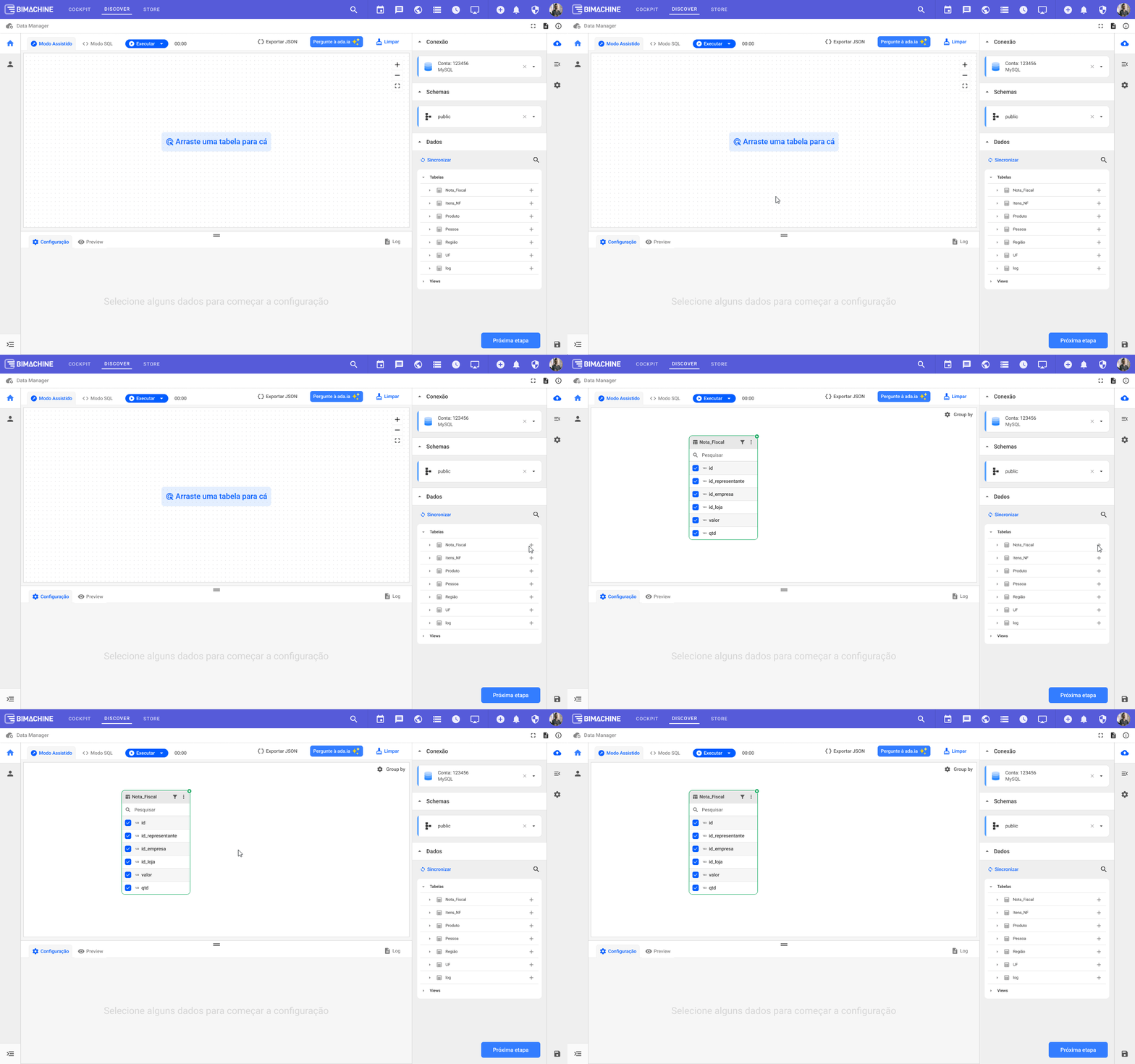
💡 Think of it as the “core” of your analysis. The other tables will connect to it.
3️⃣ Adding related tables
Now, let’s enrich the analysis by adding other tables, called dimension tables (such as products, items, or product).
- Click or drag, for example, the
Itens_NFeProdutostables. - BIMQuery will automatically attempt to detect the relationships between tables (by fields such as
id_nf,id_produto, etc.). - If necessary, you can manually create links between corresponding fields.
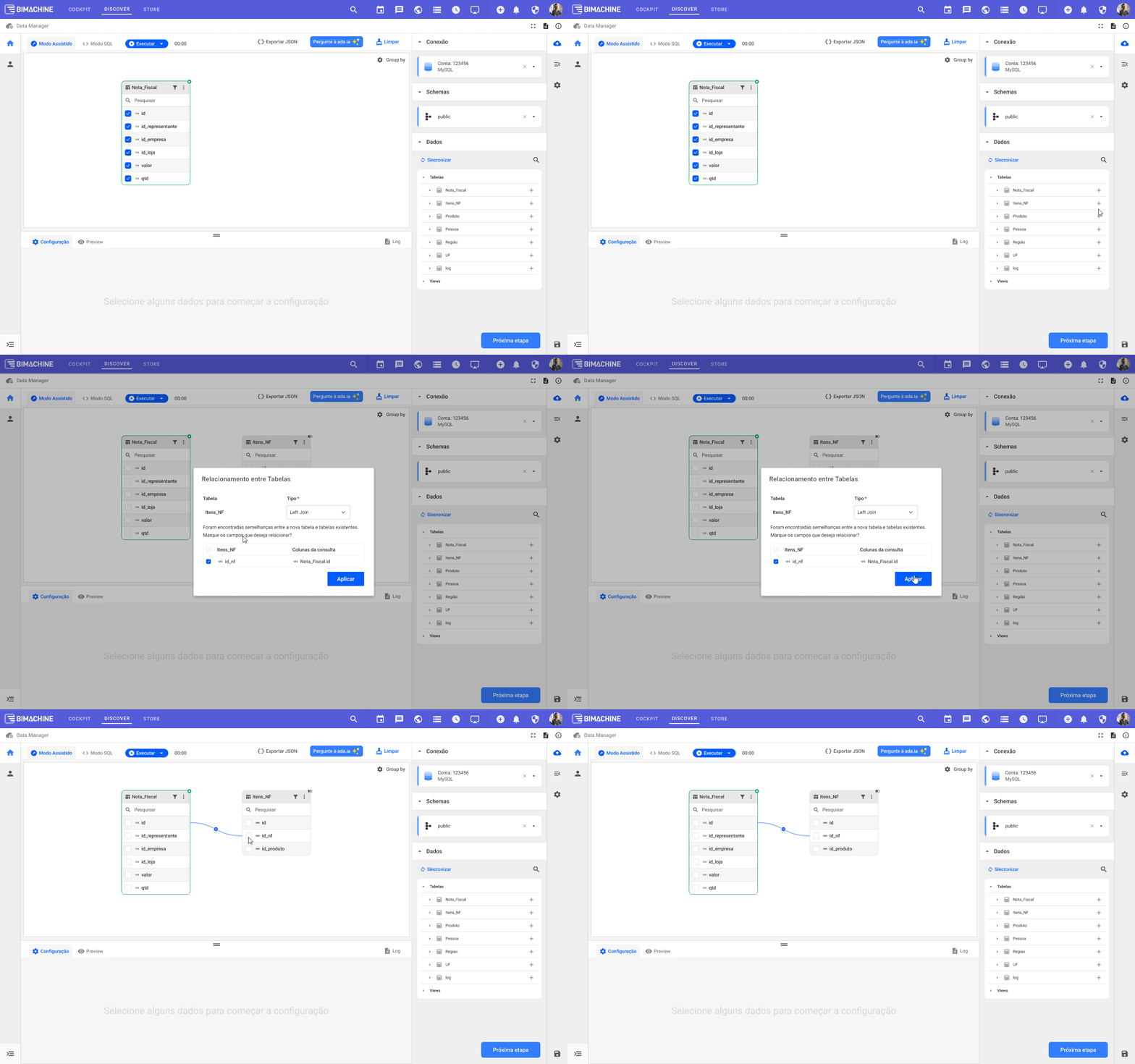
💡 These connections define how data is combined between tables.
4️⃣ Choosing the fields for analysis
Now that the tables are connected, it’s time to select the fields that will be part of the query.
Check the desired fields in each table, for example:
- From the main table:
qtdid_lojavalor
- From the items table:
id_nfid_produto
💡 This step defines what will be displayed in the query results.
5️⃣ Adjusting field settings
With the tables and fields defined, click Run.
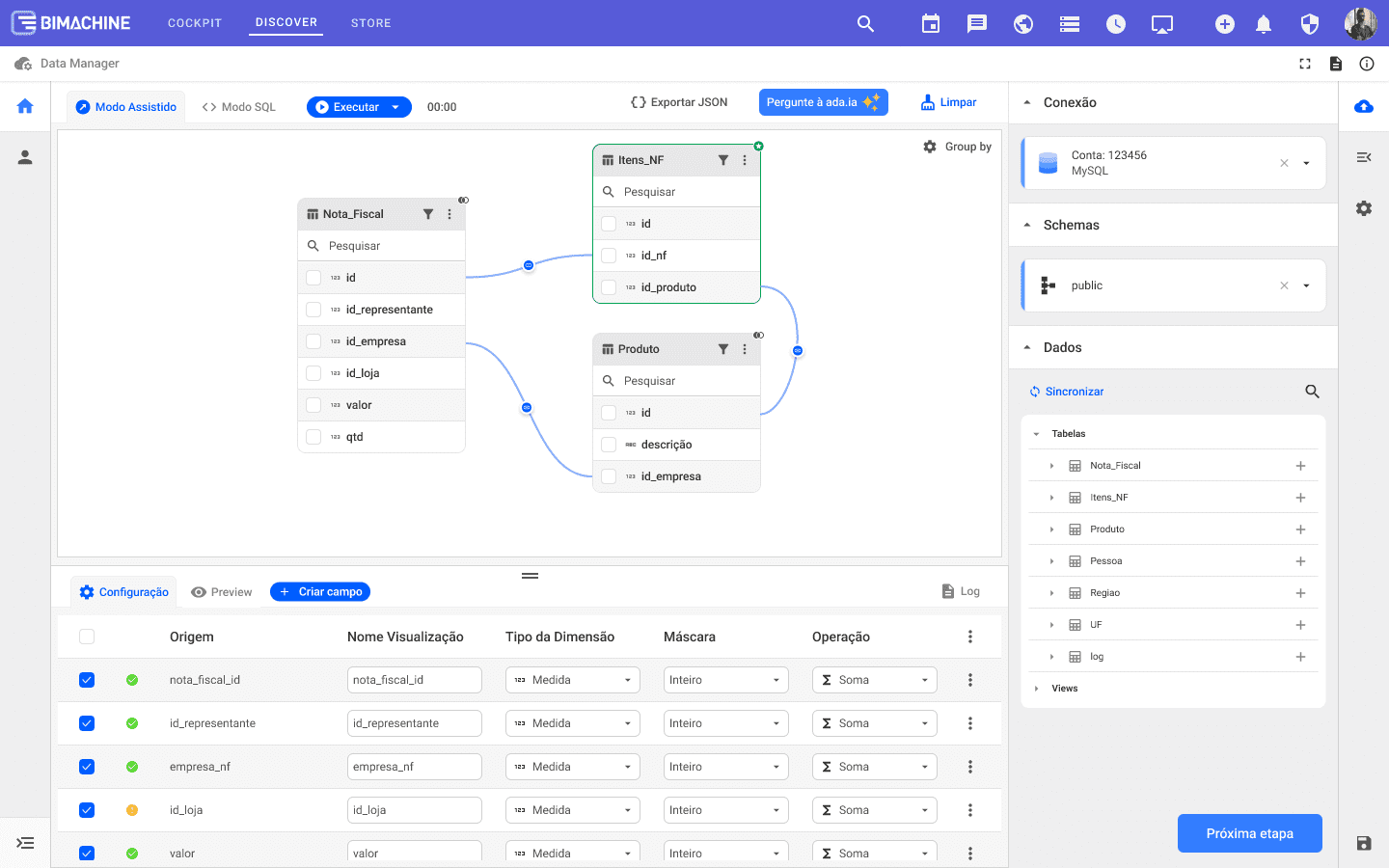
In the Configuration tab, you can customize the selected fields:
- Rename the display name for easier reading (e.g., product_id → “Product”).
- Choose the dimension type:
- Regular (text, categories, codes)
- Time (dates, periods)
- Measure (numerical values, such as revenue, cost, quantity)
- URL (image links)
- Georeference (addresses, coordinates, etc.)
- Choose the Measure Mask (Integer, Percentage, Currency (R$), etc.).
- Define the Measure Aggregation Operation (Sum, Average, Count, etc.).
In addition, after executing the query, you can create new fields, which are:
- Concatenated (join information, e.g., “State + City”).
- Conditional (e.g., if the value is greater than 1000, show “High Revenue”).
- Duplicates (to reuse a field with different settings).
💡 Duplicates (to reuse a field with different settings).
6️⃣ Viewing the result
BIMQuery will process the query and display a preview of the data, allowing you to validate the result before generating a complete analysis.
You will see, for example:
| Nota Fiscal ID | Produto ID | Qtd | Valor |
|---|---|---|---|
| 12345 | 258369 | 150 | 12.500 |
| 54321 | 147852 | 240 | 8.200 |
| 06789 | 753159 | 180 | 9.850 |
💡 If you notice something wrong, go back to the Configuration tab and adjust the fields, filters, or relationships.
7️⃣ For those who prefer SQL
If you already know SQL or want to have full control over the code, just switch to SQL Mode.
BIMQuery will automatically show the script generated based on what was done in assisted mode, and you can edit it freely.
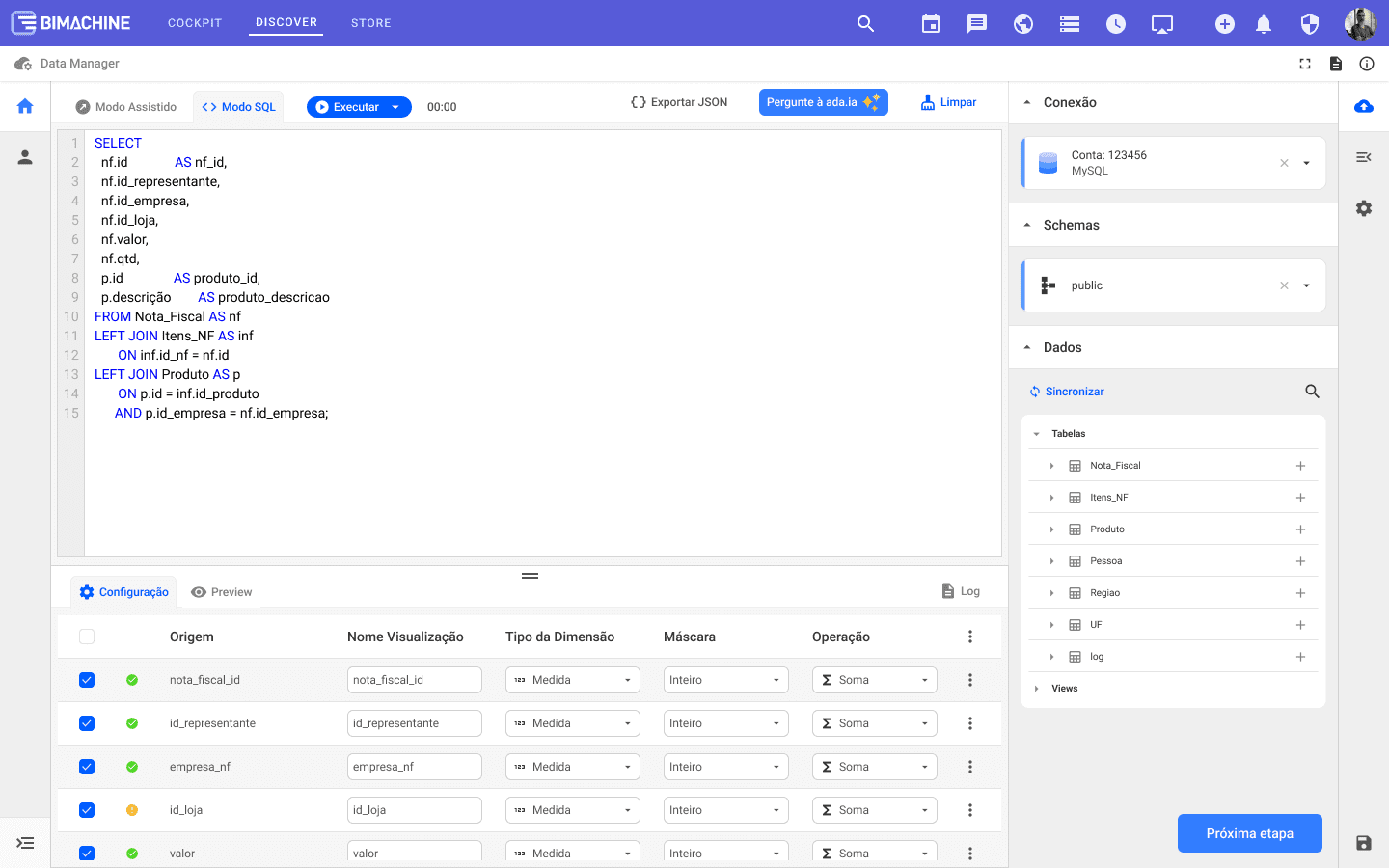
💡 Tip: start in assisted mode and then refine the SQL if you want to create something more advanced. If you want to return to assisted mode, you will see the latest version created by assisted mode, i.e., it will disregard any changes made in SQL Mode.
Final Result
In just a few steps, you have set up a sales analysis with:
- Related tables,
- Custom fields,
- Aggregate operations,
- And a preview of results.
BIMQuery’s Assisted Mode is ideal for those who want to transform data into analysis without complications and without having to write code, but it also offers the flexibility to advance queries using SQL Mode whenever you want.
Simple to start. Powerful to delve deeper. 🚀