

BIMachine’s Analytical Assistants allow you to create intelligent agents capable of interacting with users via WhatsApp, exploring platform data and returning personalized analytical insights.
Each assistant functions as an AI configured for a business context — for example, Sales, Management, or Technical Support — and its behavior, language, and target audience can be defined by the account administrator.
Functionality Overview
To create a new assistant:
- Access the platform’s Discover feature.
- Click on + (Create Analytical Objects).
- Select the “Create Assistant” option from the menu.

Assistant Configuration
After clicking Create Assistant, you will be directed to the Assistant Configuration screen.
There, you can view the assistants already created, see their status (active/inactive), the users assigned to them, and edit the Cognitive Style and Communication of each one.

After selecting “Add Assistant” (or even editing an existing one), the screen will display two main tabs:
- Assistants – where general information, communication style, and users are defined.
- Navigation – where the structure of sections and analytical objects that the agent can access are configured.
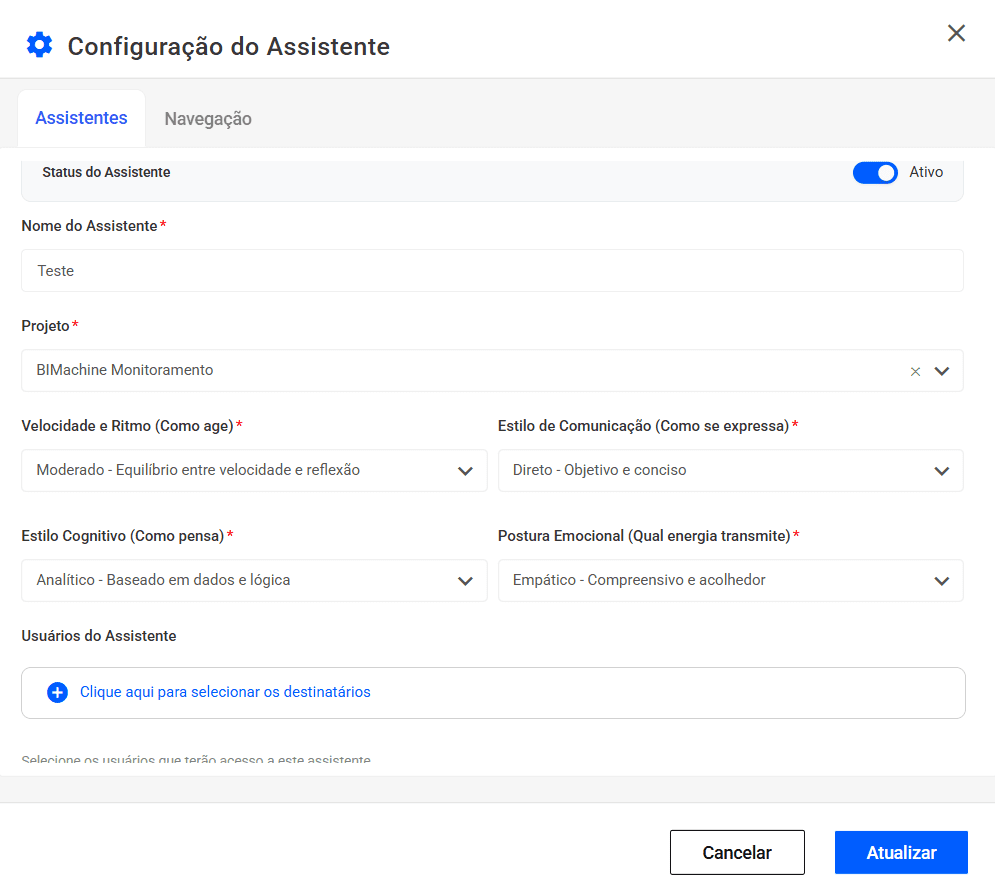
“Assistants” tab: Behavior and Audience Definition
This tab is used to configure the main parameters that define how the agent thinks, expresses itself, and interacts.
The following fields are available:
- Assistant Status: Defines whether the agent is active or inactive.
- Assistant Name: Name that identifies the agent, for example: “Sales Assistant.”
- Project: Selects the project to which the assistant will be linked.
- Speed and Pace (How it acts): Determines the agent’s response pace — faster, moderate, reflective, or adaptive.
- Communication Style (How it expresses itself): Defines the tone of speech — formal, casual, didactic, or direct.
- Cognitive Style (How it thinks): Defines the AI’s reasoning basis — analytical (data and logic), intuitive (experience and insights), creative (innovative and exploratory), or pragmatic (practical solutions).
- Emotional Posture (What energy it conveys): Controls the agent’s empathy — enthusiastic, calm, confident, or empathetic.
- Assistant Users: Defines who can interact with this agent via WhatsApp.
💡 Tip: combine styles to align the assistant’s behavior with the audience’s profile.
For example:
- Management → Cognitive Analytical + Direct Communication
- Support → Cognitive Analytical + Didactic Communication
- Sales → Cognitive Pragmatic + Casual Communication
“Navigation” tab: Agent Structure and Sections
The Navigation tab allows you to create the menu of options that the user will receive on WhatsApp when starting a conversation with the assistant.
Each section represents a menu option and is linked to an analytical object (analysis, dashboard, table, etc.) configured in BIMachine.
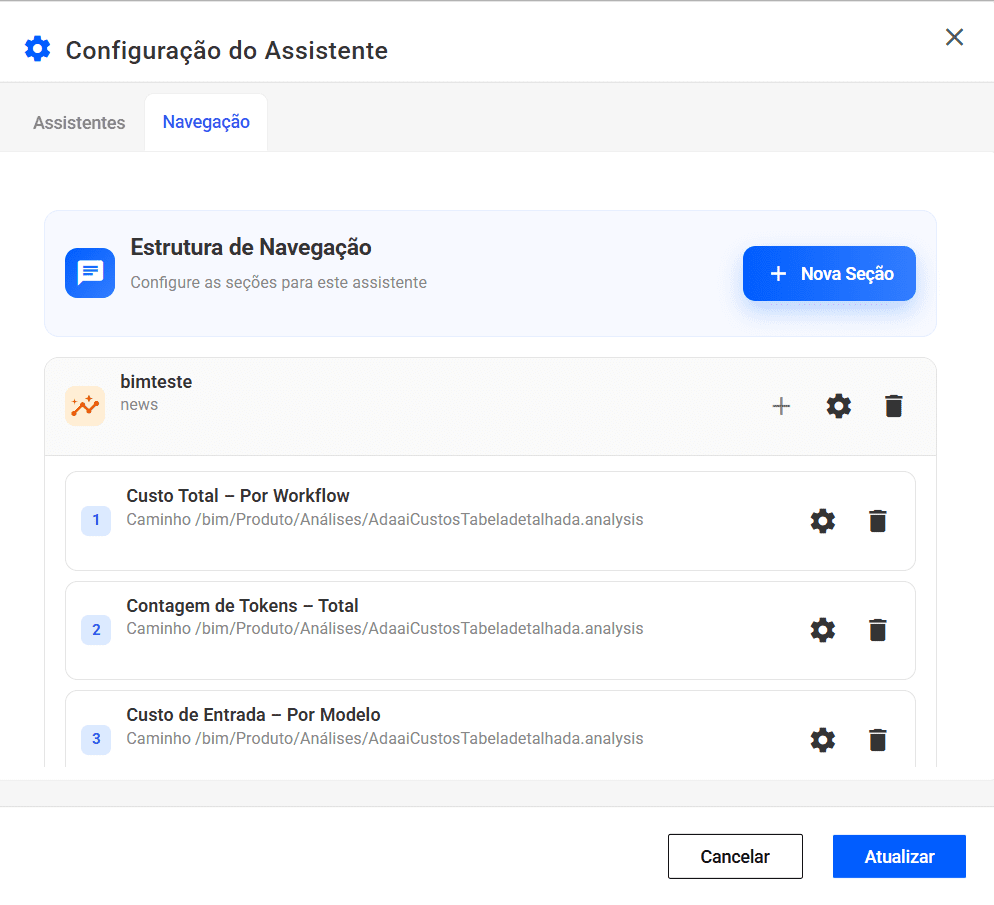
Tab functionalities:
- New Section: adds a new menu.
- Item Settings: allows you to link an analytical object and define its dimensions, measurements, and sample questions/answers (which can be added manually or with the help of AI).
- Section Order: determines the sequence in which the options appear in the WhatsApp menu.
Editing Navigation Items
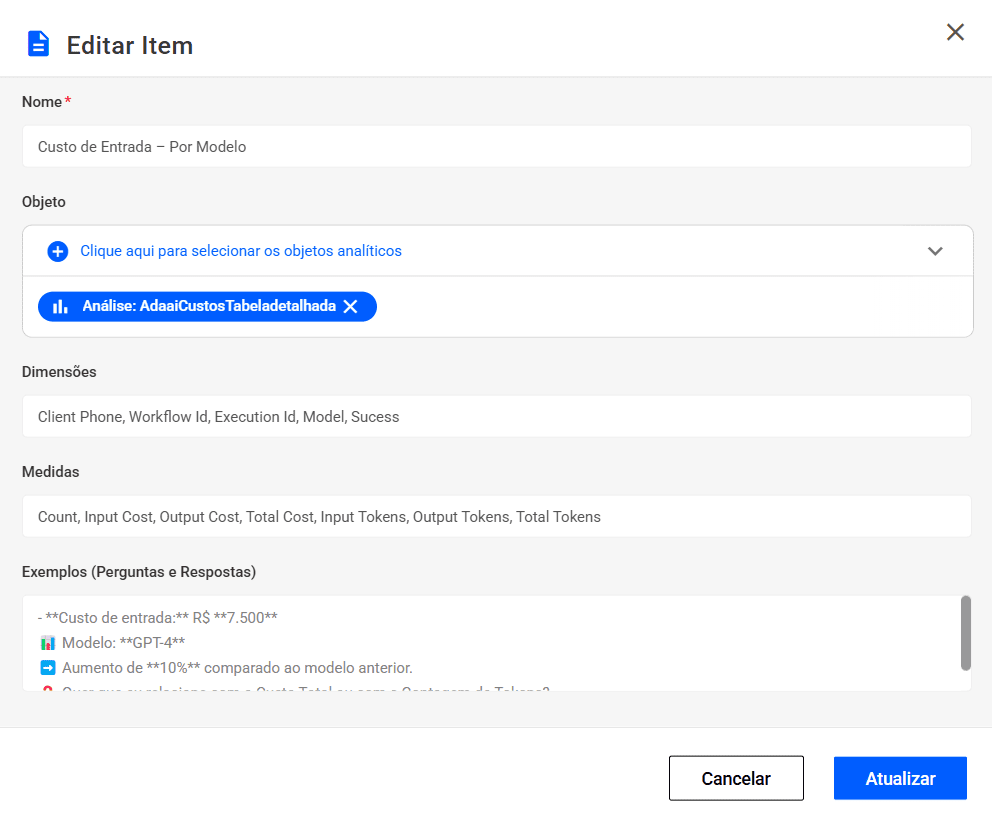
When you click to edit a section, you can configure in detail the content that will be delivered to the user when they select that option from the menu.
- Name: Name displayed as an option in the menu (e.g., “Entry Cost – By Model”).
- Object: Associated BIMachine analytical object (e.g., an analysis or dashboard).
- Dimensions: Dimensional fields used in the analysis.
- Measures: Numerical metrics that make up the report.
- Examples (Questions and Answers): Examples of messages and insights that the assistant can send to guide the user.
Example of Interaction Flow in WhatsApp
- The user starts a conversation with the assistant.
- The agent responds with the options menu configured in the Navigation tab.
- The user selects one of the options.
- The assistant consults the linked analytical object and returns the corresponding insight — which can be summary data, a comparison, or a trend.
- The interaction can continue with additional questions, according to the configured examples.
Benefits
- Intelligent automation: delivers insights via WhatsApp in a natural and personalized way.
- Flexible configuration: adjust language, behavior, and audience without the need for code.
- Full integration: leverages existing analytical objects in the BIMachine environment.
- Scalability: the same agent can serve multiple groups with different profiles and objectives.